Addicted to any offline games? Ever thinking oon how to play it without using Internet? Ever thinking on ow to download it?
Well, now you can download it with ease!
Ok! Let's get start. First, go to this site, File2HD. This site will let you download flash games from most of the flash gaming site.
1. What you need to do is, go to the page with the flash game that you want to download.
2. Copy the page URL and paste it into File2HD.
3. Set ‘Filter’ to ‘Objects’ and click on ‘Get Files’ button.
4. Next, File2HD should retrieve the direct link to the game file.

5. Right click and download that game to your computer.
We're done at the first step. Now we're into the second step.
1. We need this so-called FlashOffliner in order to run those games we have downloaded.
2. Install dan run it. Notice that there's a icon in the taskbar. Right-click it.
 >
>
You should see the available games to play and it comes with the installation files that you just downloaded.
3. Now, how to add the games that you downloaded from websites? Right-click the FlashOffliner icon and choose ‘Create New Flash Offliner Package’ and then point it to the downloaded file. Start packing it.

4. Again right click on the FlashOffliner icon and select the ‘Install FlashOffliner Option’. Point it to where you have saved your file in step 3 above. This will install the game and added to your FlashOffliner games.


That's it!
You can easily resize it to 400×300, 640×480, 1024×768 or Full Screen.
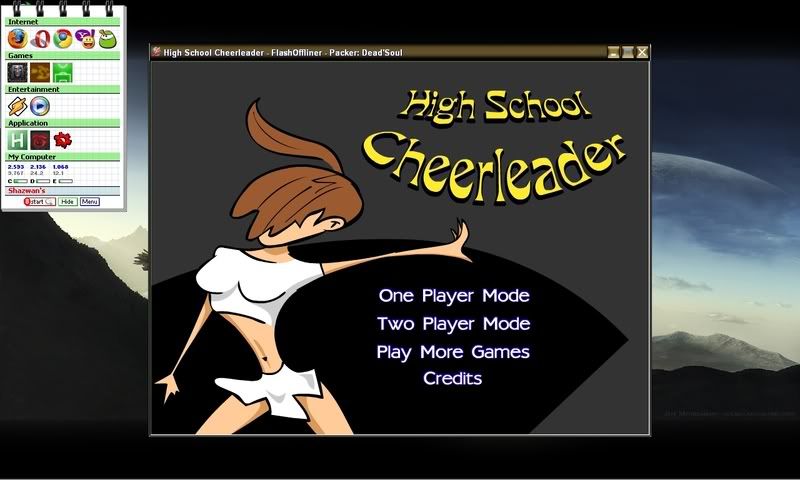
Oh ya, not to forget, I have download the game "High School Cheerleader" here, Addictive Games. It's a huge site for flash games and there's so many games you can choose yourself.
Well, now you can download it with ease!

Ok! Let's get start. First, go to this site, File2HD. This site will let you download flash games from most of the flash gaming site.
1. What you need to do is, go to the page with the flash game that you want to download.
2. Copy the page URL and paste it into File2HD.
3. Set ‘Filter’ to ‘Objects’ and click on ‘Get Files’ button.
4. Next, File2HD should retrieve the direct link to the game file.
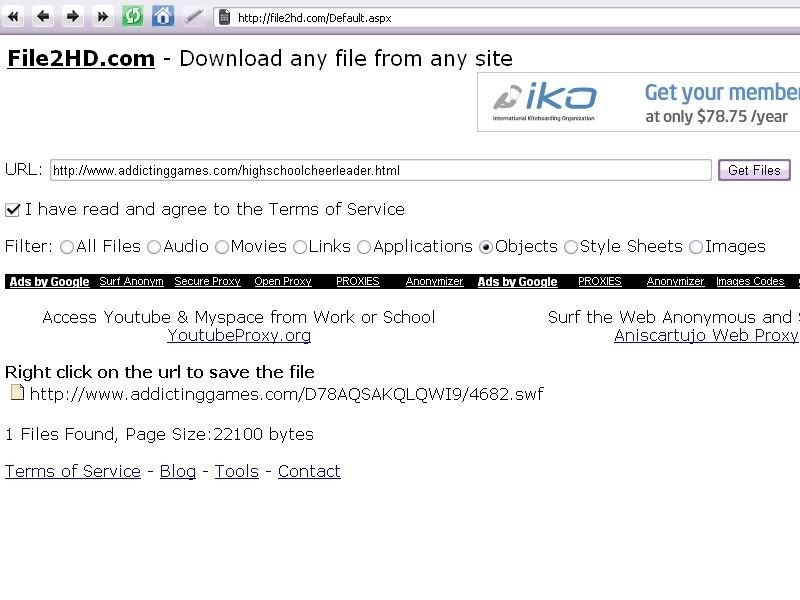
5. Right click and download that game to your computer.
We're done at the first step. Now we're into the second step.
1. We need this so-called FlashOffliner in order to run those games we have downloaded.
2. Install dan run it. Notice that there's a icon in the taskbar. Right-click it.
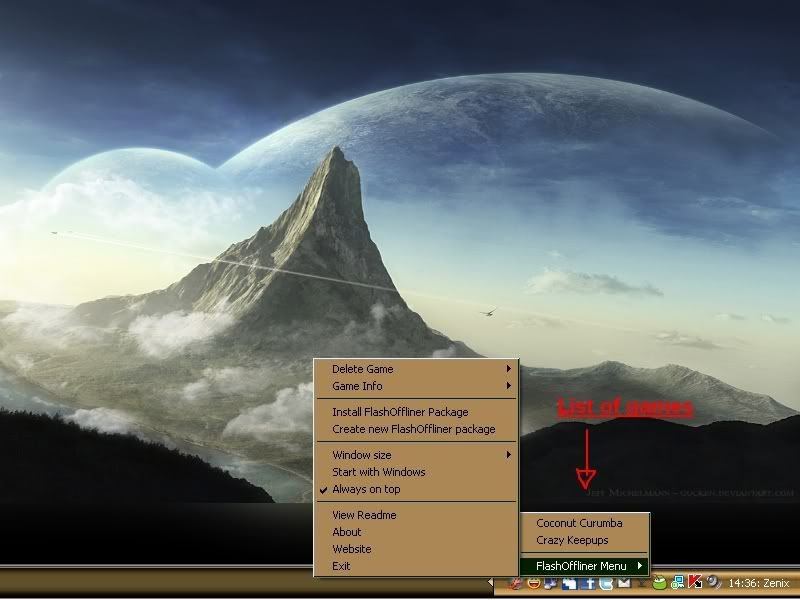 >
>You should see the available games to play and it comes with the installation files that you just downloaded.
3. Now, how to add the games that you downloaded from websites? Right-click the FlashOffliner icon and choose ‘Create New Flash Offliner Package’ and then point it to the downloaded file. Start packing it.

4. Again right click on the FlashOffliner icon and select the ‘Install FlashOffliner Option’. Point it to where you have saved your file in step 3 above. This will install the game and added to your FlashOffliner games.
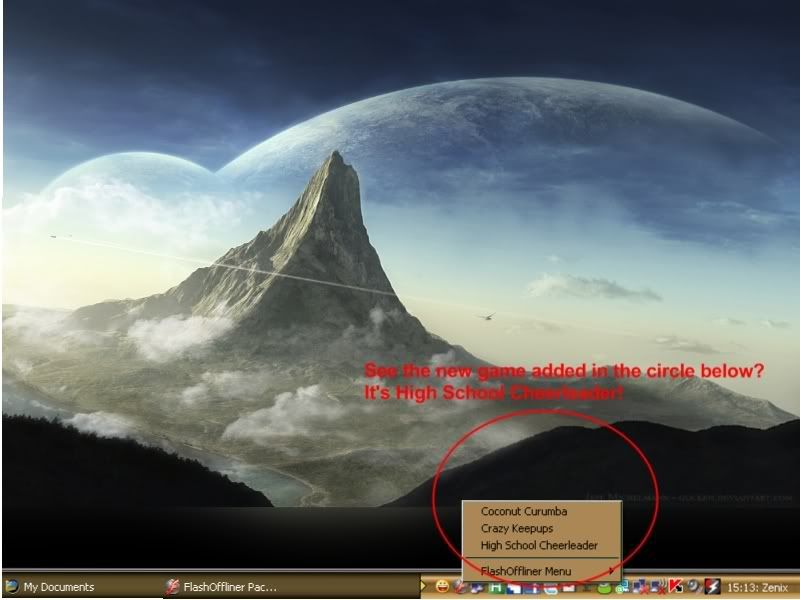
That's it!
You can easily resize it to 400×300, 640×480, 1024×768 or Full Screen.
Oh ya, not to forget, I have download the game "High School Cheerleader" here, Addictive Games. It's a huge site for flash games and there's so many games you can choose yourself.